
Sample-accurate streamers and punches, drawn right over your DAW's video. The film-leader cueing system that ADR has trusted for decades — now native, transparent, and triggered straight from your session.
Picture from Atasco, Season 4 on Prime Video. Cues are fired from Pro Tools markers and drawn over the picture; plugin UI on the left, overlay output on the right.

 (Windows coming soon)
 Hit the line without counting.
Streamers and punches are how ADR, looping and foley have cued performers to picture for decades. They let an actor lock to the exact frame — silently, precisely, every take.
The streamer
A coloured line sweeps across the picture toward a target frame. As it travels, the performer sees their cue approaching — a moving "get ready" they can feel, not just hear. The sweep duration is the count-in, set by you, identical on every take.
The punch
The instant the streamer arrives, a bright flash pops on the exact frame — the punch. That is the moment: speak now. It is the difference between a take that drifts and one that locks to picture the first time.
A streamer sweeping to its punch on a leader — built in the plugin (left), drawn over the picture (right).
The old way
- ✕ Optical film leaders, or a separate video machine just to cue
- ✕ Faking cues with coloured clips and time-stretching in the timeline
- ✕ Cues that look different in every session and drift off the frame
- ✕ Time spent building guides instead of directing the take
With Streamers Pro
- ✓ Streamers and punches drawn natively over your DAW video
- ✓ Sample-accurate — the punch lands on the right frame, every take
- ✓ Consistent, reusable cue boxes that travel with your session
- ✓ No extra hardware, no extra app — it lives in your insert chain
Built for ADR & foley
Everything you need to cue a performer to picture — and nothing that gets in the way of the session underneath.
Transparent click-through overlay
A frameless, click-through window floats your streamers and punches right over the DAW video. It never steals focus or blocks a click — and it stays on top of the picture even when you switch to another app.
Streamers & punches, your way
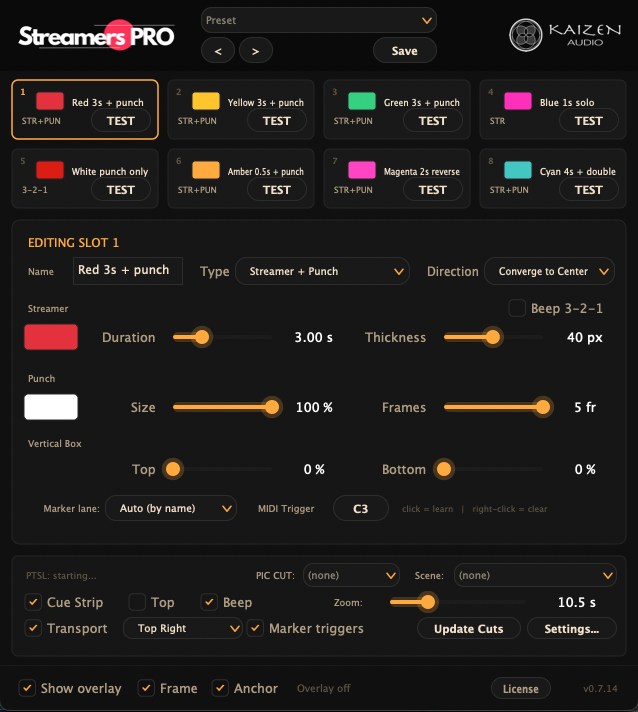
Eight cue boxes with five cue types and five directions, plus colour, duration, thickness, punch, vertical crop, caption, beep and their own marker lane or MIDI note. Save them with the session.
Fire from MIDI or Pro Tools markers
Launch any cue from a MIDI note or straight from a Pro Tools marker — drop a marker where the line should land and it fires in sync. Perfect for ADR and foley. It could not be simpler.
The overlay anchors to your video
The overlay locks onto the Pro Tools video window automatically and follows it across moves, resizes and monitors — or switch Anchor off and place it by hand whenever you would rather position it yourself.
Transport on the overlay
The overlay shows the session transport state in the corner you choose, so the actor or foley artist always knows exactly where you are in the take — without ever looking away from the picture.
Cue Strip & Scene Strip
A live guide along the picture, tape-machine style: the Cue Strip slides the clips of your PIC CUT track under a fixed playhead, with every upcoming cue marked in its colour; the Scene strip adds the scene you are in. Read live from the session over PTSL.
Sample-accurate & customizable
Cues lock to the host clock, so the punch lands on the exact frame every take. Tune the strips to your room — zoom, colours, height, opacity and more.
Made for Pro Tools
Deep Pro Tools integration over Avid PTSL, signed and notarized. Works in any VST3, AU or AAX host; the marker workflow and window tracking are built for Pro Tools. Windows on the way.

See what's coming, in real time
A live visual guide running along the picture, tape-machine style. The Cue Strip slides the clips of your picture-cut track — PIC CUT — under a fixed playhead, with every scheduled cue marked in its box's colour; the Scene strip adds the scene you're in — so the performer reads the next cut, and the next cue, before they land.
- ✓ Built on deep Pro Tools integration (PTSL) — picture cuts and markers read live from your session.
- ✓ Totally customizable — zoom, colours, height, opacity and more, dialled to your room.
- ✓ The overlay also shows the transport state, so the actor or foley artist always knows where the session is.
Aim the cue where the eye needs it.
The converging modes draw two lines that meet on the GO — at centre or away from it when the action is not in the middle of frame.
Each box is a complete cue template.
- Streamer + Punch
- Streamer only
- Punch only
- Streamer + visual 3-2-1-REC
- Visual Countdown 3-2-1-REC
Colour, duration, thickness, punch, Vertical Box crop, caption and beep live inside the box. Its marker lane and MIDI Learn decide how the DAW fires it; Copy/Paste carries the look while preserving that wiring.
Every cue, under your control
- ✓ 8 cue boxes — colour, duration, thickness, direction and punch, each with a TEST button, its own MIDI note and its own marker lane.
- ✓ Marker-name captions — show each cue's name on screen (the "1 CAR HORN" in the trailer above), at the size and hold time you choose.
- ✓ Studio watermark — drop your logo over the picture at any size and opacity for client review copies.
- ✓ Fine overlay control — strip height, frame, transport size, opacities, punch glow and your room's Sync Offset (Mac), all dialled in.
Three steps to cued
Insert & aim
Drop Streamers Pro on an instrument track. The overlay finds your Pro Tools video window and locks to it automatically.
Design your cues
Set up the 8 boxes — colour, duration, direction and punch. Each one fires from a marker lane or its own MIDI note.
Roll & perform
Drop a marker where the line should land — or fire a MIDI note. The streamer sweeps in and the punch hits the exact frame.
From a working ADR & foley stage
We needed real streamers in Pro Tools and didn't want to babysit a film leader or a second machine to get them. So we drew them ourselves — straight over the picture, locked to the session clock.
Streamers Pro is the cueing tool we use on our own ADR and foley sessions at Blacktone Studio — and we record a lot of foley. Precise, transparent, and out of the way until the moment it matters.
Get Streamers Pro
Try it free for 7 days. Buy when you're ready.
Includes 2 licence seats — move them between machines, online or offline.
Questions? hello@kaizen.audio
You already have access